How to Make a Free Website with GoDaddy
I’m going to show you how to make a 100% completely free website using probably one of the most popular web hosting companies ever we’re going to be using godaddy’s website builder and yes this is free you don’t even need a credit card to sign up but because it is free it does have some limitations which I’ll point out along the way and if those end up being deal breakers for you I’m going to also present to you a more premium option that doesn’t have any of those limits so let’s go ahead and get started here get yourself to GoDaddy and what you want to do is come to the websites tab up here and click.
on website builder right away you’ll notice it does say free trial which is misleading uh this is like I said 100% completely free forever you don’t have to pay for hosting let me just prove that to you real quick if we go down to the bottom of the page and we find the frequently asked questions is my website really free yes you’ll never be charged for a free website plan uh they basically give you a free trial for 7 days as you can see here and then after those 7 Days the premium features will go away and then you’ll just have the the free plan for indefinite period of time so uh like I said.
We’re Not Going to Be Using Any Of
they do have paid options they have the basic premium Commerce plan we’re not going to be using any of those features uh we will just do the free plan to start which like I said comes with a free trial so come up to the top click on start for free no credit card required and go ahead and and create yourself an account if you don’t already have one I’m going to continue with email fill out my information create my account and once you have your account you’re going to end up on this setup page now there are literally dozens and dozens of different types of websites for the sake of Simplicity I’m going to start.
with a basic website feel free to pick anything else that is relevant to you go ahead and click on continue and for the kind of website I’m going to just say a personal website click on continue and now what should we call your website feel free to call yours whatever you want but I just wanted to share this with you I recently found this out about God daddy so back in 1999 when they were coming up with a name for the company a very popular movie at the time was Big Daddy with Adam Sandler in it and somebody’s like oh we should call it Big Daddy but unfortunately that domain name was already taken so.
as a nod to that I’m going to call my website Cat Daddy today so we’ll click on continue and if your website does have a physical address you can go ahead and fill out some of that information I’m going to go ahead and continue and now this step is completely optional if you want artificial intelligence to help create your website you can go ahead and type a little description about what your website what you want your website to be about and then it’ll kind of generate it with some stock images some headlines and and stuff like that uh let’s go ahead and try that I type my description here it basically says a website where.
See Our Website We Do Get Prompted For
I’ll be sharing cute cat pictures and funny cat videos so go ahead and click on continue and AI is going to do its thing probably less than a minute I’ll be right back with you when that’s finished now before we can see our website we do get prompted for upgrading to a Premium plan but let’s go ahead and skip that we can continue for free like I said and we get one more prompt here it’s asking what sections would you like on your website uh let’s go with the defaults you can add more uh if you want to and like it says down here you can always add more sections later I’ll actually show you.
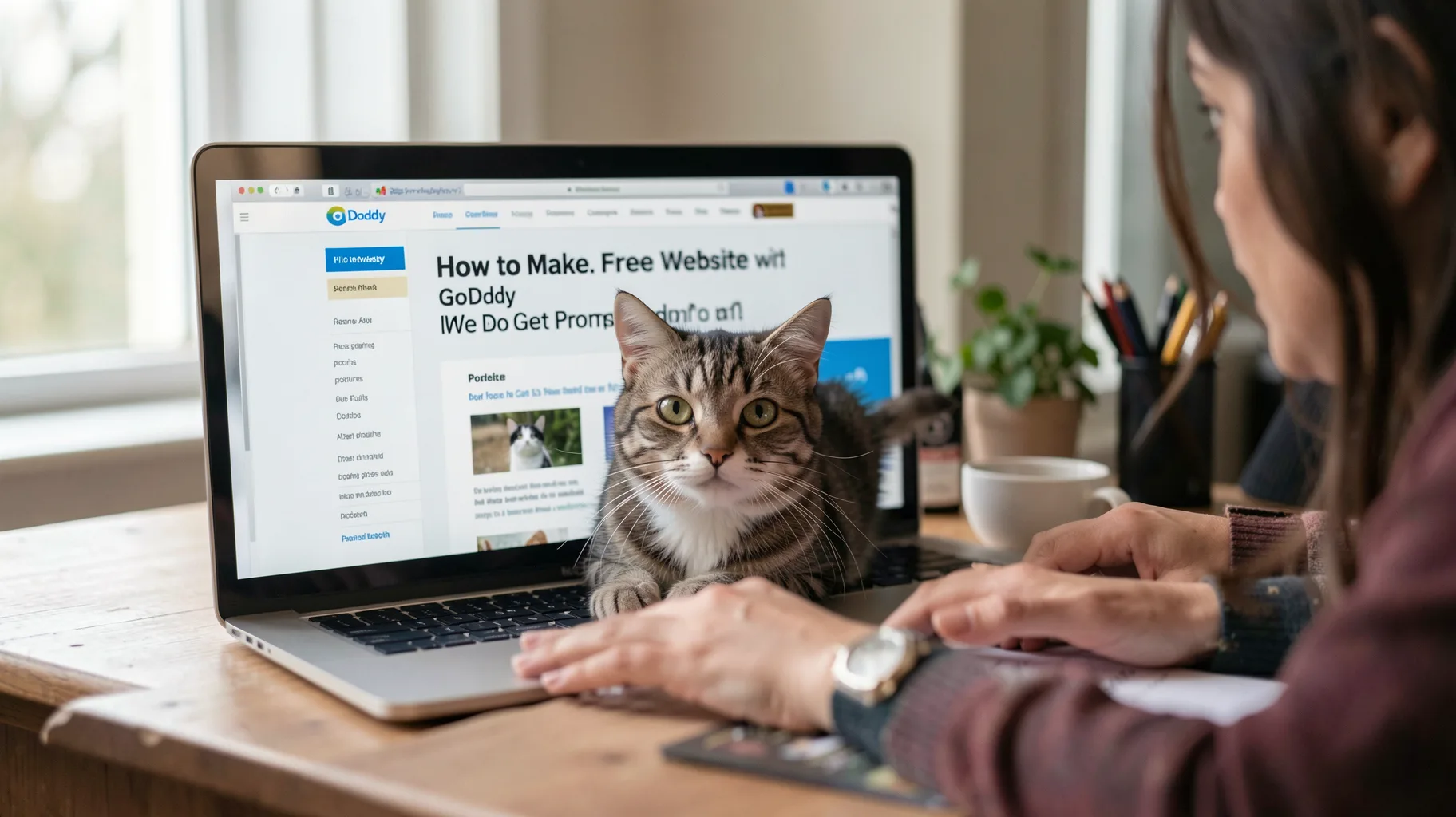
how to do that in the tutorial so let’s stick with the def the defaults and then continue to your site and there we have it we have a basic template of a website and I’m just looking here real quick it looks like AI missed the Mark I don’t think they really understood that this website’s going to be about cats since there’s a picture of a dog and records and whatnot but that’s okay everything in here is fully customizable you know instead of uh unlock your potential you could just click and type whatever you want your headline to be let’s say for mine a website for cat lovers everywhere and then as far as the images.
are concerned you can easily change those out for your own images click on the update button here and then over on the right hand side panel we can click on change image and I actually have a few images on my desktop that I want to use so I’m going to actually use this one right here so I’ll drag that and upload it to my website and then we’ll click on insert and that updates it with that image so down here we do have this Gallery these are all stock photos but you can go ahead and kind of follow the same procedure to replace those so click on that gallery and yes you can change the.
Actual Images Let’s Get Rid of the Stock
layout if you don’t like the style of that layout we can make it more of like a grid that actually looks pretty good so I’ll keep that hit done and then to change actual images let’s get rid of the stock images and then I’ll click this plus button to add my own and just like before I’m going to pick all of images of my cats drag them into here those will take just a couple seconds to upload and now we can add those to the photo gallery okay and there you have it that looks pretty good you know you can follow the same exact procedure for any other image on the page or any other.
text on the page it’s really easy click and edit or over here on the right hand side in the sidebar you can modify things as necessary So speaking of the sidebar over here I did want to take you through all three of these tabs so you have uh the website tab the Theme tab and the settings tab so let’s start with the website tab uh one of the first limitations that you’ll quickly find out with this free version of the website builder is that if you wanted to add a new page you cannot so the free version only comes with a onepage website you can kind of get around that uh by adding links to.
different sections of your page to make give give the illusion that you do have uh multiple pages on your website so let me show you what I mean by that you can up here site navigation click plus and we want to add a new section link so uh let’s add a link down to that gallery that we just created so I’m going to say cat photos and then it’s going to be on the homepage cuz that’s our only page and then the section we wanted to go to is the picture perfect uh section so we’ll show that in the navigation bar at the top create the link and that should show up okay there you.
Cat Themed Website So Let’s Add Another Section
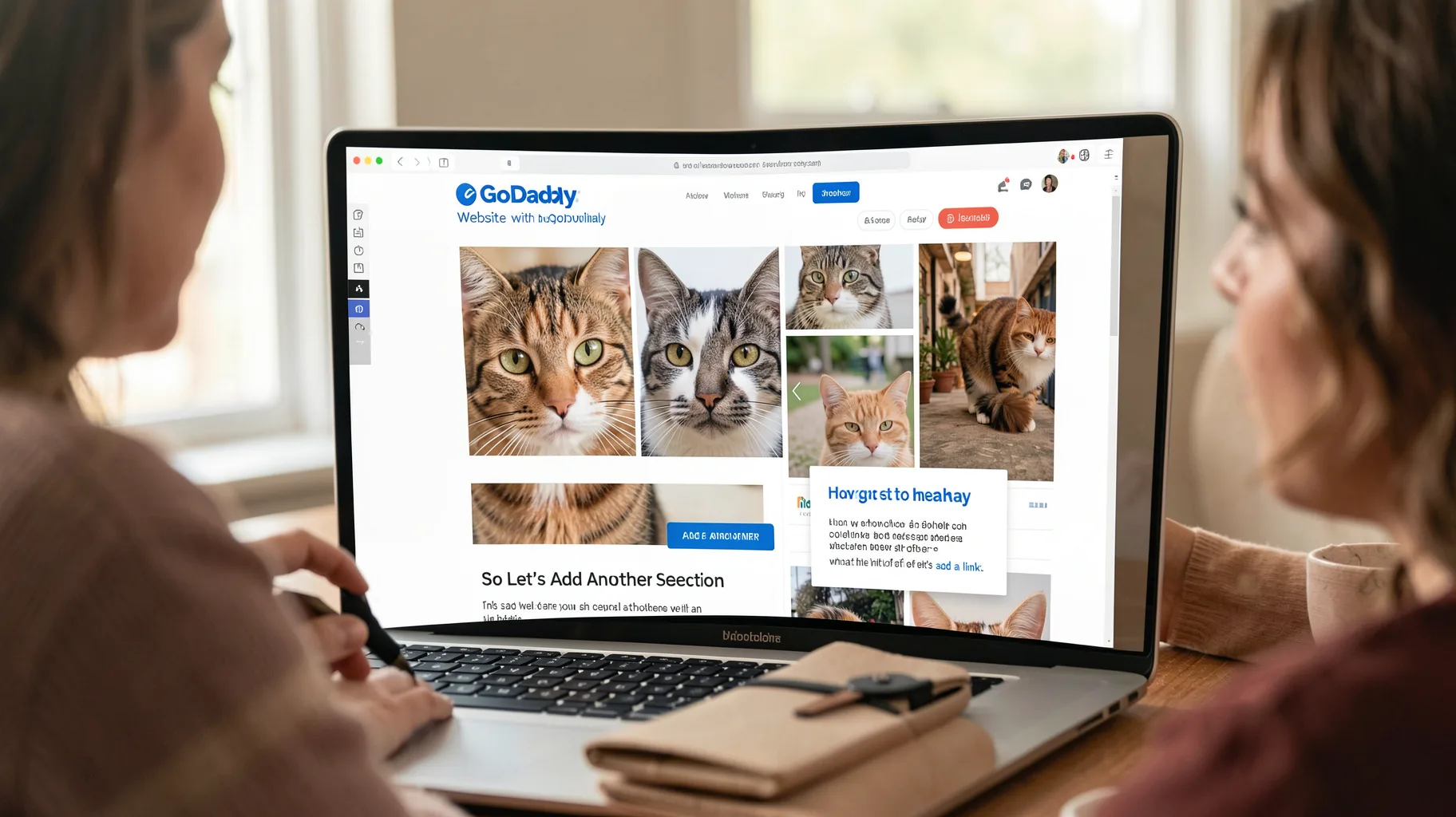
go so we got home our cat photos if you click on that it takes you down to the gallery and let’s let’s add another link let’s say uh well we’re we doing cat themed website so let’s add another section and because cat videos are what the internet is built off of let’s add a link to a cat video so uh we’ll say under the audio video section we’ll do a video and then you have all these different templates about how you want the video to look like on your website I’m just going to do a single video add that and all I did was earlier picked out uh typed in cat video to YouTube so.
I got this URL here that I’ll paste in and that’s going to load that in onto our website and we’ll say this is a cute cat video check out this great video of cute cats okay so we’ll go ahead and click on done to save that and we should have another Link at the top oh I’m sorry we didn’t do the link let’s do the link now so same as before We’ll add a new section link to go from up here down to the video so we’ll say cat videos and then we’ll pick that new section video and then create the link so as you can see our navigation bar is coming together that’ll take.
On My Website So You Can Really Easily
you right down there I don’t want a contact form on my website so you can really easily get rid of this section by clicking these three dots up here and delete the section go ahead and confirm that and now that sections gone you can add sections delete them we’ve seen how to do both of those I do like the social media section here you click on that and you can add links to your social media accounts I won’t bore you with that process it’s really simple just like we did with a YouTube video go ahead and paste in your your links and those will be enabled for people to click on okay so that’s good.
for the website tab uh they do also have this chat feature that people can you know the bubble that pops up in the bottom right hand corner of the website that you’re on they do have that built in if you don’t want that feature we can turn that off or you can keep it on if you want that but let’s go into the Theme tab here and there’s three options here color fonts and buttons we’ll go through each one of those I’m going to click on color and as far as I can tell you basically get to pick one color for your website and then they have this slider bar that increases the excuse me.
On Your Website So They Do Suggest Some
the amount of color that shows up on your website so they do suggest some matching colors I think they pull these from this main image on your website so you can pick any one of those or you can pick a custom color that you want and that’ll become the color of your website and then like I said if you just want that to be more prominent across your website weite you can slide it up to the the colorful the light or the dark section to paint your website now as far as fonts are concerned it’s pretty straightforward so they have different types of headings so uh they have your main heading your secondary heading and.
then your your body text so you can customize each one of those uh with any one of these options that you have here so we’ll do this font for the primary font and then the secondary font let’s do cabin okay okay that looks good and then the last option up here is the buttons so we’ll click on that and you see this is a button right here we have start now that’s a primary button there’s also a secondary button so they have a couple different options you got a square one square one with a little Shadow behind it rounded one ones that are just outlined instead of filled in so let’s pick a rounded one.
For Our Website for the Primary Button Click
for our website for the primary button click done and then I’m not sure if we have a secondary button on here but you can also customize that one as well one last thing here we do have uh a theme that they picked out for us in the beginning when we went through the AI website builder uh you can pick an entirely different theme so they have this whole library of themes so right now we have this one where our main image is off to the left and then we have a little overview to the right of that but we can pick a full screen one like this one the spaces theme let’s just see what.
that looks like to give you a demonstration and what that does is changes the the layout of your website based on that theme so that’s fine for now let’s stick with that theme next up let’s check out some options under settings and let’s start with the basic information tab so you can change the name of your site if you want to at any time so I’m going to keep mine the same you can pick a different category for your website and if you do have a physical address for your business if your website represents a physical business then you can put that in here and your phone number uh we’ll keep those all the same.
Much Every Website Has Just Little Picture To
for now social media links we talked about those earlier a fave icon I actually do have a fave icon what is a fave icon a fave icon is this little icon up here that pretty much every website has just little picture to represent your website so let’s go ahead and upload one going to click on upload and I’ll pick the fave icon and done now there’s a couple other settings down here we won’t go into every single one one that is is kind of interesting is site history so if you do end up making a change and you don’t know how to undo it because you don’t want it uh you can come back here.
and hopefully go back to a previous version of your website that was saved in the past uh so I just want to make you aware of that uh but we won’t do that right now we’ll go back to settings and I think we’re ready to publish our website so like I said in the beginning of this tutorial you do get a free subdomain as you can see up here they generated one based on the name of my website so catdaddy dogod daddys sites.com the other limitation of this free website hosting platform is that if you did want to connect your own domain like say I owned cat daddy.com if you wanted to do that you.
Of Free Website Hosting with Go Daddy We’re
do have to upgrade to a paid account so that is another limitation of free website hosting with Go Daddy we’re just going to stick with the the subdomain for now so let’s go ahead and click on publish and it does look like somebody else probably already has catdaddy doodad sites.com so they gave me a random number after Cat Daddy so you can customize your subdomain to a certain extent but you don’t have complete control over it anyway let’s go ahead and view the site so we’ll click on that and as you would expect this is what it looks like we got everything that we created back in the editor we got our Gallery with all.
of our cat images the cute cat video that you could just click play here and uh yeah it looks good let’s see what it looks like on mobile um using Google Chrome so I’m going to go into the developer tools and that’s going to generate uh what this looks like on a pixel 7 device you could do an iPhone 14 pro Max looks similar looks good you got the menu up here that will bring up uh your navigation bar on the mobile website and yeah that looks good so the one thing that you probably did notice is there is GoDaddy branding in the pholder and at the very top it’s stuck up here to the.
From Your Website So If That’s Not Going
top so that is another limitation I guess with the the free hosting with GoDaddy sites because that is unfortunately something that you cannot remove from your website so if that’s not going to work for you as far as the unremovable GoDaddy branding or if you need it more than just a single page website or even if you needed to connect your own custom some domain name I did want to make you aware of a more comprehensive website hosting solution that doesn’t have any of these limitations and is in fact even more capable than the premium versions of godaddy’s website builder Elementor hosting not only allows you to create a website with as many pages as.
you want and has no ads or watermarks but also allows you to connect your own custom domain name and even gives you a free domain name for free for the first year every single Elementor hosting plan is priced more affordable than the corresponding GoDaddy website builder plan and not only that but you can save up to 75% on the Elementor light plan and pay just $3 a month for the first year and on all plans you get access to the Elementor page builder which gives you the ultimate website customization where you can easily drag and drop dozens of widgets to quickly design your pages plus Elementor has a risk-free 30-day money back guarantee but if.
You’re Still Not Convinced Check Out
you’re still not convinced check out this video next for an in-depth review of Elementor hosting and to see why some of elementor’s Premium features make the upgrade worth it especially when compared to god daddy.