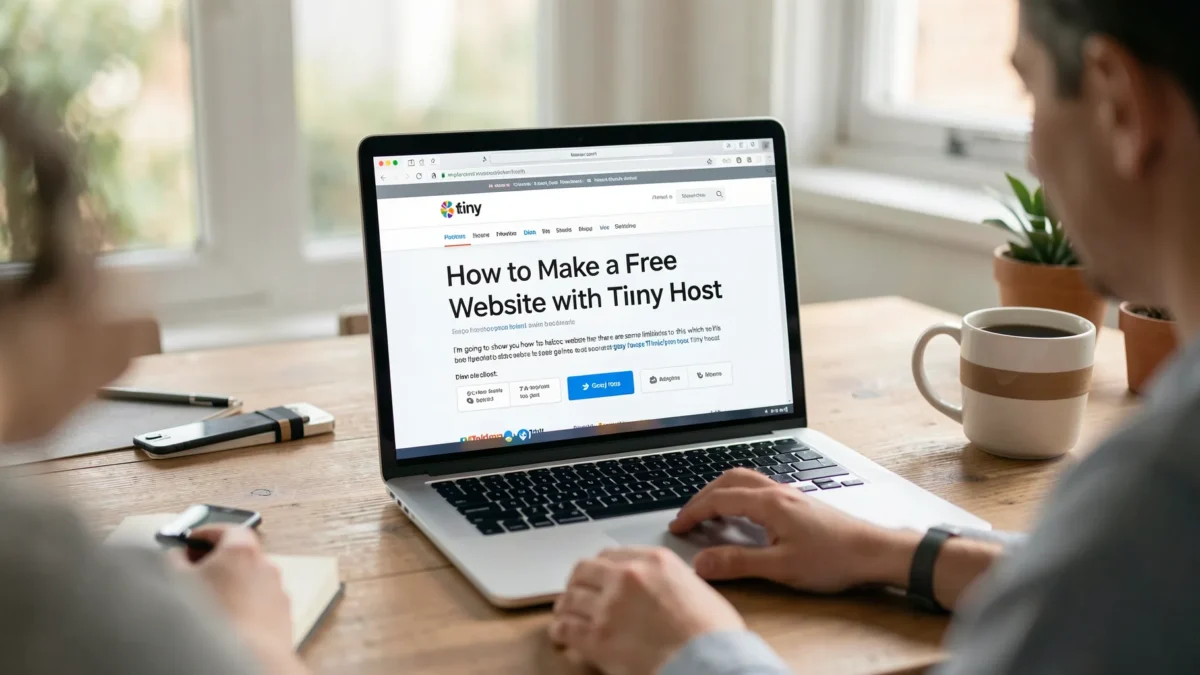
How to Make a Free Website with Tiiny Host
I’m going to show you how to host a free static website there are some limitations to this which we’ll get into but otherwise let’s get on into the tutorial to do this we’re going to use a website called tiny host with two eyes TI i n y. host and if you come down here to the pricing section you’ll see that they do have a $0 per month plan which is free and that gives you one website 3 megabyte file uploads and 5,000 visitors per month so just to give you some context in case you’re not familiar with website hosting that’s not a lot of resources 3 megabyte file uploads is basically less than the size.
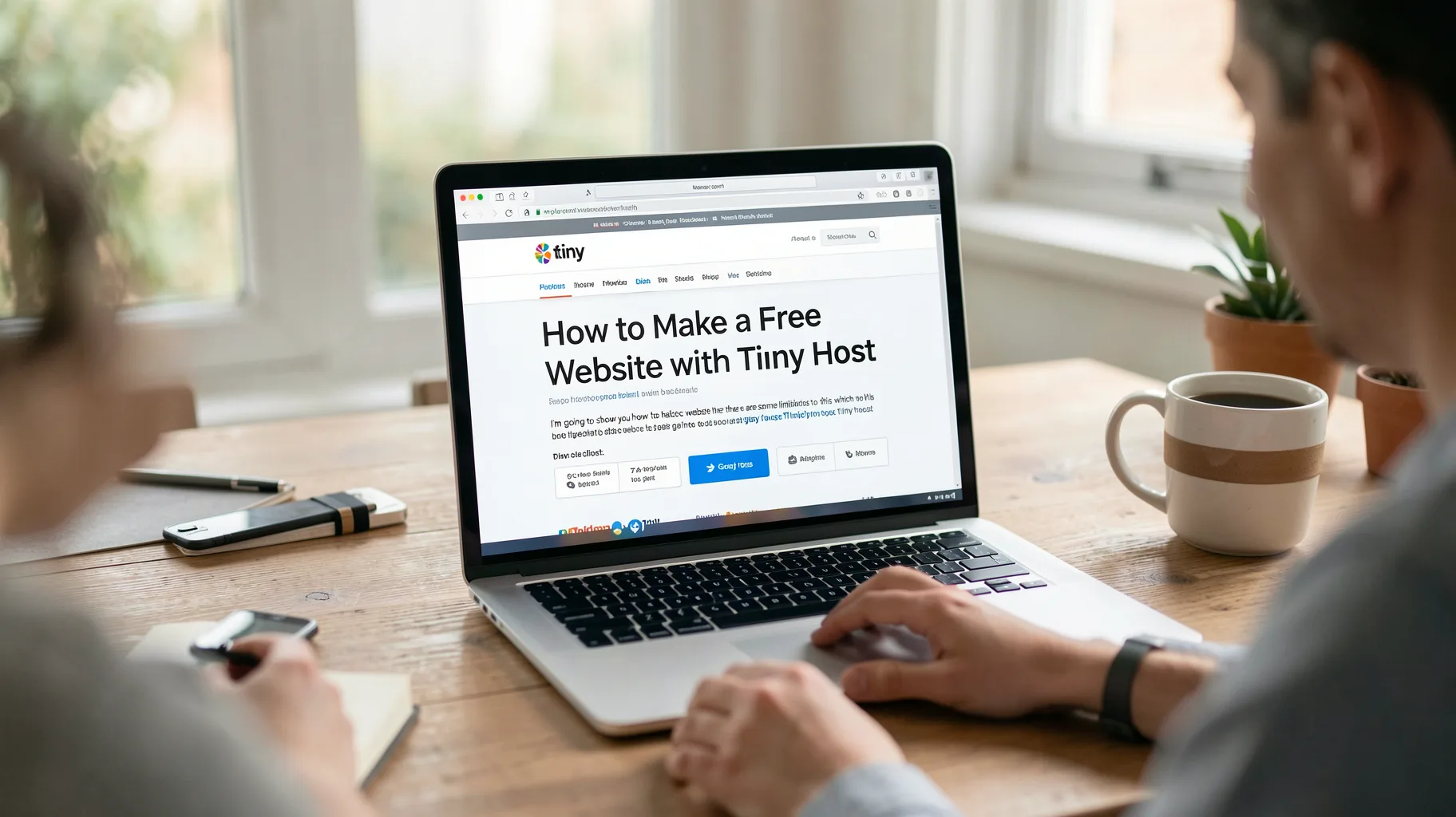
Okay So Let’s Click the Get Free Button
of a picture from your cell phone 5,000 visitors a month that’s like maybe 150 160 people coming to your website every day for some people this is okay this is sufficient all they want is a landing page for other people they might need more resources which there are other options but for I’m going to show you how to work with the free version okay so let’s click the get free button going to take us back up top here the simplest way to host and share your web project so I’m going to call my website Tony teaches Tech and what you do is you get a free subdomain name um you can add a custom domain.
for like I let’s just say google.com or my website.com you would have to upgrade to do that but otherwise you get a free subdomain at Tony teer tech. site for me you could pick whatever you want here and then you have these other options about what you want to host so you can do an HTML static website you can do a zip file which includes multiple HTML files or other types of files a PDF and then they have some examples so we’re going to look at HTML zip later on in the tutorial but the examples are pretty cool to start with because you get uh basically a fully fledged website just with a few clicks.
of the button so let’s do this blog one here I’m going to publish that to Tony tees tech. site and we’re going to let it work its magic and then on the other side we have Tony teaches tech. tiny site let’s see what that looks like and as we expected it’s a basic skeleton of a Blog so we have Anthony his profile picture some Social Links some basic uh blog post examples here that looks good but how do we modify this well let’s go back to our account here and it says own and extend create an account to edit and manage your link so let’s go ahead and do that I’m going to type in.

That Appear Let’s Just Delete What We Did
my email and sign up for a free account and then over on my Gmail I’m going to check that we got the verification email so I’m going to verify my email and then we can fill this out just a short survey and we get that same popup with a lot more options here now the one bug that I found with tiny host is that if you go through the process that we just went through there is no edit button here okay and that’s okay because we didn’t really do anything yet but we still want to edit our website so in order to have that appear let’s just delete what we did so far and we.
can just do it again and that edit button should show up so let’s go upload go to examples click blog we’re going to call it Tony teaches Tech publish okay so the same popup here but this time we have the edit button so let’s click on that see what we get we don’t need this one anymore and honestly this is kind of a cool pointand click editor so I can double click here and say Tony teaches Tech and then like welcome to my blog welcome to my website something like that but unfortunately this is free we have to upgrade to save your changes so that’s too bad but there is a free way that you.
can still edit your website that’s what about so we don’t have to upgrade let’s get out of here what we can do is actually download our code so over here on the right there is a way to download your website onto your local computer and then we’re going to edit it on our local computer so we can open that and you see we have uh a zip file so let’s extract that zip and in here here we can see the contents of our website so we have our index page which is what we were looking at we have we can push spacebar to preview that we have our blog post an individual blog post we.
Of It Let’s Open Up Our Index Html
have a list of blog posts and we have an about page so just for the heck of it let’s open up our index.html with any text editor editor yeah with any text editor that you want and I’m just going to show you so we can in here this is HTML code in case if you’re not familiar we can change the title from bootstrap 4 blog template for developers to Tony teaches Tech just between these two tags here for the title we can come down here oh Anthony’s blog I remember that let’s call it Tony’s blog come down here and then here hi my name is Anthony I’m just going to say hi my name is.
Tony so let’s save that we’ll get out of here we we can preview it offline since this is a static website I’ll hit my space bar again and you can see Tony’s blog hi my name is Tony let’s change this to Dev Dev blog a Blog about let’s open that up again come down here and here it is Dev blog I’m going to say Tony teaches Tech okay save that preview it that looks good okay so what we can do now is take all of this compress it and that’s going to make a zip file and now we could take that zip file and upload it back to Tiny host so let’s do that we’re.
going to delete what we have here that’s okay because we have a copy of it on our computer upload a zip upload the file inside here we have our archive. ZIP file now because we deleted our website let’s make sure we call it Tony teaches Tech publish and boom Tony tees tech. site is live let’s see if our changes are up here and it looks like they are so we got Tony teachers Tech welcome to my blog hi my name is Tony and Tony’s blog log one thing though is that’s not my picture that’s Anthony’s picture so let’s see what we can do about that well if you come in here I have on my.
File So Let’s Go Ahead and Do That
desktop uh a picture of myself a head shot and if I try to come in here and upload this it’s going to say file not accepted they don’t they do tiny host does not allow you with a free plan to upload pictures so what can we do about that well pretty much the same process that we did before we can edit it offline and then upload it with the picture in our ZIP file so let’s go ahead and do that um inside of our assets folder here we can find another folder called images and then we can see Anthony’s profile picture here so what I’m going to do I’m going to basically delete his profile.
picture drag mine in here and I’m going to make sure I call it the same that his was so his was called profile okay so now when we load the website again we should see my picture and not Anthony’s but we have to go through that same process that we did before so let’s go get rid of our old archive file so we’ll move that to trash select everything compress all of that into a zip file and then back in tiny Host this time instead of deleting the website let’s update the website so we can click on update and upload a file here’s our archive. ZIP open update okay there we go that was pretty.

Quick So Let’s See What Our Website Looks
quick so let’s see what our website looks like and Bam there’s my profile picture and not Anthony’s picture you get the idea you can go through that workflow change change something upload it preview it all that stuff until you get to a point where your website looks good for your use case now there are like I said in the beginning of the other options that you can do so we also have the HTML option and this is basically bring your own HTML template okay so there’s many websites out there some of which you have to pay for some of which are free I’ll show you a free website where you can get get HTML templates.
and that’s called HTML5 up.net and there’s a long long list of them here all of which are free downloads the one that I like is called verti okay so this is we can see a live demo of it here um looks really good some pictures and some blocks of code okay so let’s download that for free okay now we have that in our downloads folder it’s basically the same exact thing that we were doing let’s up that zip file and see what we get so back here in tiny hosts let’s update upload file and we’ll pick the v.zip file update okay boom that has updated our entire website replacing everything that was there with the.

Theme So Let’s Take a Look
ver T theme so let’s take a look at what that looks like and as expected this is what we saw on the HTML 5 up.net website so this is ver T you can go through the same exact workflow download the code modify compress it upload it and then you can see your changes happen so very cool for a free website hosting option if you’re looking for something that has less limitations than this I recommend that you check out next I’ll see you guys over [Music] there.